By Jacob Kopp September 2, 2026
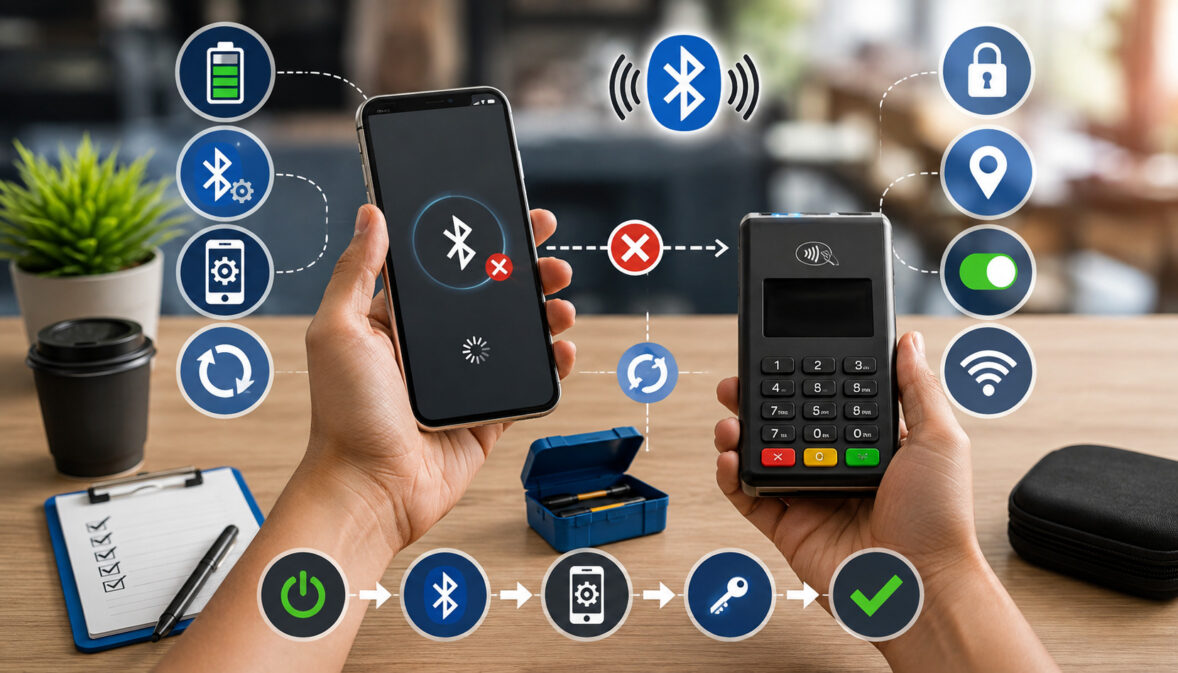
A mobile card reader that worked yesterday may suddenly refuse to pair before a delivery route, event, service call, restaurant rush, or busy checkout shift. When a mobile card reader not connecting becomes an urgent frontline problem, the fastest reaction is often to delete Bluetooth pairings, reinstall the app, or reset the reader.
Those actions can make a simple problem harder to diagnose.
Mobile card reader recovery works better when staff follow a predictable sequence from the least disruptive checks to the most disruptive ones:
Power → Reader State → Phone/Tablet State → Bluetooth → App Permissions → POS App → Device Compatibility → Firmware/App Updates → Forget/Re-Pair → Controlled Reset → Test Payment → Document → Escalate
The central rule is simple: do not factory-reset a payment reader until power, pairing state, permissions, app status, compatibility, and provider-specific instructions have been checked first.
The reason is operational as well as technical. A factory reset can remove saved connections or other configuration, and some devices may then require reactivation, firmware synchronization, merchant provisioning, or assistance from the payment provider.
Staff also need to recognize that “the reader is disconnected” does not automatically mean the reader is defective. The actual failure might be the phone, tablet, operating-system permission, POS application, merchant profile, internet connection, device-management policy, firmware level, or an old Bluetooth relationship with another device.
This guide provides a recovery sequence that helps staff restore service without weakening payment security or creating a second problem while solving the first.
Confirm What Type of Reader You Actually Have
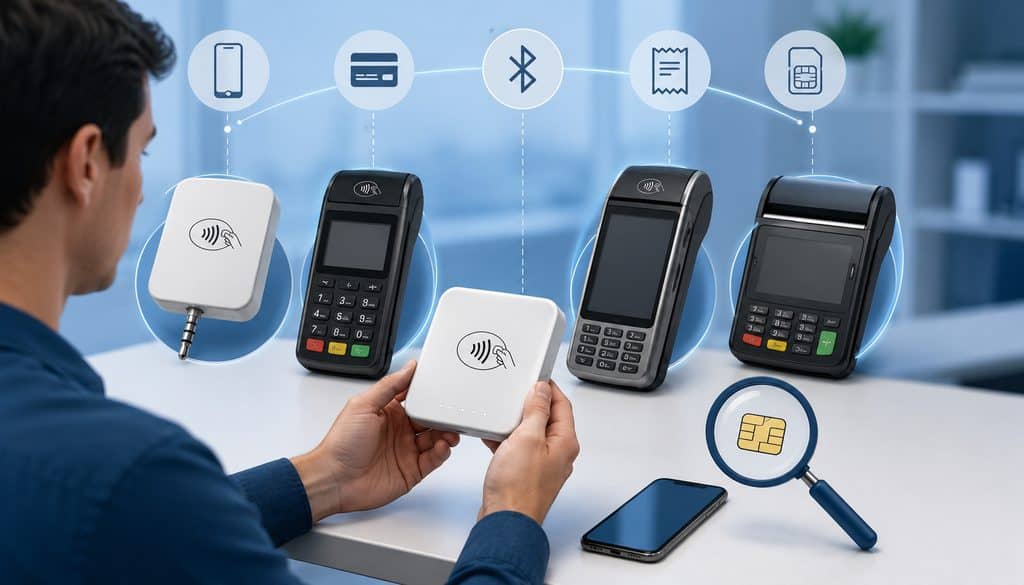
Before beginning Bluetooth card reader pairing, confirm that the payment device actually communicates through Bluetooth.
“Wireless card reader” is an imprecise description. A payment device can operate wirelessly without using Bluetooth at all.
The four common configurations are:
| Reader or Terminal Type | Typical Connection | Does Bluetooth Pairing Apply? |
| Bluetooth-connected mobile card reader | Bluetooth to phone or tablet | Usually yes |
| Wi-Fi-connected payment terminal | Local Wi-Fi/LAN | Usually no |
| USB, USB-C, or Lightning reader | Physical cable/accessory connection | No Bluetooth pairing in normal use |
| Standalone cellular terminal | Built-in cellular connection | Usually no |
Mobile card-reader configurations can include physically attached and Bluetooth-connected credit card readers, which is why staff should confirm the hardware’s actual connection method before troubleshooting Bluetooth.
A Wi-Fi terminal will not necessarily appear in the phone’s Bluetooth device list merely because the terminal is wireless. Likewise, a standalone cellular terminal may process transactions independently of a nearby phone or tablet.
Businesses unfamiliar with the underlying setup may also benefit from reviewing how mobile payment readers and mobile POS systems combine a phone or tablet, payment application, card reader, and processor connection.
EMVCo describes mobile acceptance as covering several architectures, including mobile devices used with card-reading attachments as well as contactless acceptance directly on supported mobile devices. That broader architecture is one reason staff should establish the connection method before diagnosing a supposed Bluetooth fault.
For a Bluetooth reader, determine whether the provider expects pairing through:
- the POS or payment application;
- the operating system’s Bluetooth settings;
- a combination of system pairing and app enrollment; or
- an automated provider-specific setup workflow.
Do not assume the procedure used with a headset, speaker, or consumer accessory applies to a payment reader.
Confirm the Correct Reader and Mobile Device Before Changing Anything
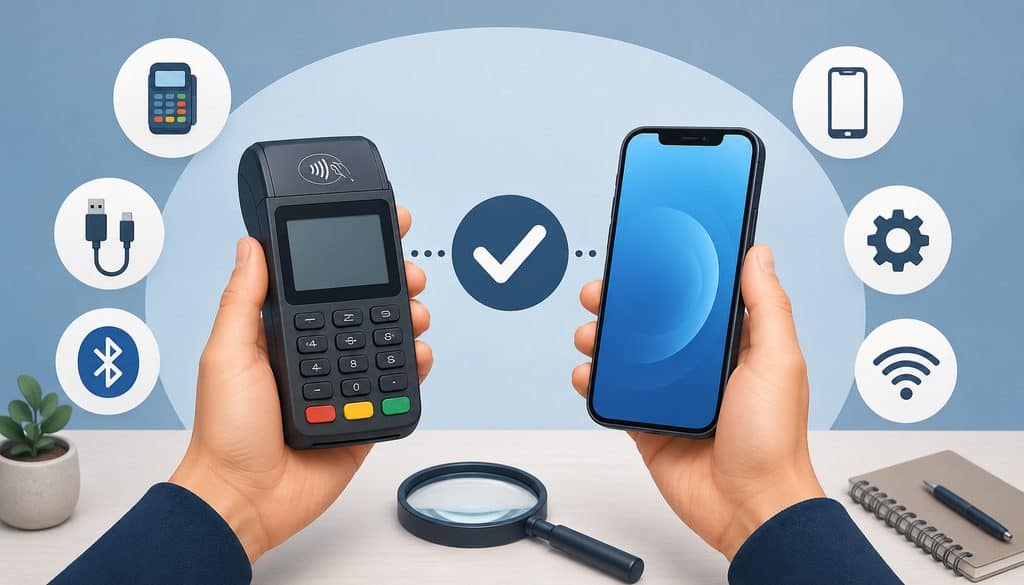
In a multi-reader environment, a POS reader pairing issue can simply be a case of choosing the wrong device.
Imagine four event booths operating next to one another. Each booth has an identical reader, and several devices become discoverable at the same time. A cashier may select Booth B’s reader from Booth A’s tablet and conclude that the assigned reader is malfunctioning.
Before modifying Bluetooth settings, record or confirm:
- reader make and model;
- asset tag;
- serial number or provider-visible reader ID;
- assigned employee or shift;
- assigned phone, tablet, register, truck, or booth;
- POS/payment application;
- merchant account or location profile; and
- expected connection method.
Compare the physical reader’s identifier with the identifier displayed by the POS application whenever the platform exposes that information.
Do not rely solely on a generic Bluetooth name if multiple readers share similar identifiers.
A simple inventory relationship is useful:
| Reader | Serial/Asset ID | Assigned Device | Location | Status |
| Reader 1 | ______ | ______ | ______ | Active / Spare |
| Reader 2 | ______ | ______ | ______ | Active / Spare |
| Reader 3 | ______ | ______ | ______ | Active / Spare |
This becomes particularly important for restaurants, delivery hubs, field-service teams, and temporary events where readers regularly move between employees.
Pairing the wrong device can create more than inconvenience. It can produce confusing checkout workflows, unexpected reconnect behavior, and poor support records because staff may troubleshoot Reader A while transactions are actually being initiated through Reader B.
Step 1: Is the Reader Charged, Awake, and Ready to Pair?
Yes, these should be the first technical checks.
Before changing application permissions or deleting Bluetooth relationships, determine whether the reader has power, is awake, is in the state required for pairing, and is not actively connected to another host device.
A reader that cannot advertise or accept a connection because it is asleep or depleted will look very similar to a Bluetooth configuration problem.
Staff should verify:
- The reader powers on normally.
- The battery or charging status indicates that power is available.
- The reader is awake rather than sleeping.
- The provider-supported pairing state has been activated if required.
- Another phone or tablet is not maintaining the active connection.
- The reader being selected is the intended device.
Do not establish a universal battery percentage for pairing unless the manufacturer publishes one. Different readers have different charging, sleep, and update requirements.
Battery and Power Checks
A reader can appear completely unresponsive because the battery is depleted, but a power problem can also originate outside the reader itself.
Check the approved charging equipment, cable, connector, charging dock, and visible charging indication. If the business has an identical known-good approved cable or charger, testing that accessory can help distinguish a reader battery problem from a failed charging accessory.
Give a deeply discharged device time to respond according to the manufacturer’s guidance rather than repeatedly pressing buttons.
Physical inspection matters too. Look for obvious damage around the charging port, unusual attachments, excessive heat, or a security or tamper warning.
Do not open the reader to inspect its battery or internal electronics. Payment readers are security-sensitive equipment, and hardware repair belongs with the authorized manufacturer or provider.
Wake the Reader Using the Supported Procedure
Some readers enter a low-power or sleep state between transactions. Others automatically wake when the POS application initiates communication.
Use only the documented wake or power procedure for that reader.
Do not tell employees to experiment with long button holds, multi-button combinations, hidden menus, or improvised reset sequences. The meaning of a button press varies significantly between devices.
If the approved procedure does not wake the reader, document what happened and continue with power diagnosis or hardware escalation rather than repeatedly trying undocumented combinations.
This disciplined approach is part of good portable terminal troubleshooting: confirm observable device state before making configuration changes elsewhere.
Confirm Pairing Mode
Pairing mode is not universal.
Depending on the product, a reader may:
- advertise automatically when powered on;
- require a documented pairing action;
- become discoverable only after a command from the payment app;
- pair only inside the POS application; or
- reconnect automatically to its previously authorized mobile device.
A reader that is powered on is therefore not necessarily available for new pairing.
If the application says “searching for reader” but the reader is not in its required pairing state, changing phone permissions will not fix the underlying problem.
Check the manufacturer’s or payment provider’s documentation for the exact model before following a device-specific procedure.
Check Whether It Is Already Connected Elsewhere
Bluetooth devices often retain a bond with a previously paired host. Android’s Bluetooth documentation notes that paired devices can remain bonded and reconnect automatically in later sessions while in range unless the relationship has been removed.
A payment reader may therefore reconnect to:
- the manager’s tablet;
- the previous cashier’s phone;
- another register;
- a dispatch tablet;
- a technician’s previous work device.
If the authorized payment solution allows only one active host connection, that existing connection can prevent the intended device from attaching.
Disconnect or release the reader through the provider-supported workflow. Do not randomly erase Bluetooth settings across every nearby device.
Reader State Checklist
| Check | Pass? |
| Reader powered on | ☐ |
| Battery adequate for operation | ☐ |
| Reader awake | ☐ |
| Required pairing mode confirmed | ☐ |
| Not actively connected elsewhere | ☐ |
| Correct reader selected | ☐ |
If these checks pass, move to the phone or tablet. Do not reset the reader simply because it has not yet appeared.
Step 2: Check the Phone or Tablet
Once the reader state is confirmed, inspect the host device.
A functioning reader cannot pair successfully if Bluetooth is disabled, the POS app is restricted, the operating system is unsupported, or a company device-management policy prevents the required connection.
For effective mobile POS troubleshooting, verify:
- Bluetooth is enabled;
- relevant wireless services are operating;
- airplane-mode configuration is understood;
- the approved POS app can run normally;
- the device is not subject to a blocking management restriction;
- the operating system remains supported by the payment provider; and
- battery or background-management behavior is not interfering with the application’s operation.
Do not immediately assume that “Bluetooth On” proves Bluetooth is functioning correctly for the payment app. Operating systems can separately control whether an app has permission to use Bluetooth-related functionality.
Restart Bluetooth Before Restarting Everything
For a transient Bluetooth payment reader not connecting condition, toggling Bluetooth off and back on may be an appropriate low-impact step when supported by the operating system and provider.
After doing so, reopen or restart the POS application if its documentation recommends that approach. An app may not immediately restart device discovery merely because Bluetooth has been toggled.
Avoid making several changes simultaneously.
If staff disable Bluetooth, force-close the app, reset networking, forget the reader, and restart the reader all at once, it becomes impossible to determine which step corrected the fault. That makes recurring problems much harder for support teams to diagnose.
Change one layer at a time whenever operational conditions allow.
Understand Airplane Mode Carefully
Airplane mode should not be treated as a universal “Bluetooth off” switch.
The exact behavior of Bluetooth, Wi-Fi, and cellular radios depends on the mobile platform and how the device has subsequently been configured. A user may be able to re-enable certain wireless functions while airplane mode remains active.
For troubleshooting, verify the actual state of each connection needed by the payment workflow rather than relying on the airplane-mode icon alone.
A Bluetooth reader may pair while the phone remains unable to reach the payment processor because cellular data or Wi-Fi is unavailable.
That distinction becomes especially important during events, mobile routes, and field-service calls.
Restart the Phone or Tablet Before Resetting the Reader
A normal mobile-device restart is a reasonable intermediate troubleshooting step when the reader appears healthy but Bluetooth or the POS application remains unresponsive.
Restarting the host may resolve temporary operating-system, radio, memory, or application-state problems without altering the reader’s payment configuration.
After restart:
- Verify the required network connection.
- Verify Bluetooth state.
- Open only the approved POS app.
- Confirm the correct account/location.
- Attempt the normal provider-supported reconnect workflow.
If the reader begins working, document the host-device restart as the successful recovery step.
Managed Company Devices May Have Additional Restrictions
Company-owned tablets and phones may be controlled through mobile device management, or MDM.
An administrator may restrict:
- Bluetooth pairing;
- installing or updating applications;
- Local Network access;
- Nearby Devices permissions;
- use of external accessories;
- changes to privacy settings;
- cellular data;
- unmanaged applications.
If a permission switch is missing, grayed out, or automatically changes back, the issue may be an IT policy rather than a reader defect.
Do not try to bypass company device-management restrictions. Escalate to the appropriate administrator.
Step 3: Which App Permissions Are Required?
There is no universal set of payment-reader permissions.
The exact permissions depend on the POS application, operating system, reader model, connection method, and application design. Staff should enable the permissions required by the legitimate provider documentation—not every permission available on the device.
Possible permissions or system capabilities can include:
- Bluetooth;
- Nearby Devices;
- Local Network;
- Location;
- Wi-Fi or network connectivity; and
- notifications for operational alerts.
These labels do not mean the same thing, and an application does not necessarily need all of them.
Bluetooth Permission on iPhone and iPad
On iPhone and iPad, an application that uses relevant Bluetooth functionality may need explicit user authorization.
Apple states that apps must ask for permission to use Bluetooth functions, with exceptions such as many audio uses. Users can review app Bluetooth access under Settings → Privacy & Security → Bluetooth.
For a Bluetooth-connected payment reader, this permission can be essential if the POS app relies on Bluetooth APIs to discover or communicate with the device.
The troubleshooting lesson is important: Bluetooth can be switched on globally while the payment app itself lacks permission.
If the app’s Bluetooth permission has been denied, restoring that authorized app permission may resolve the card reader connection problem without unpairing or resetting anything.
Do not change permissions for unrelated applications.
Nearby Devices on Android
Android uses a different permission model.
Current Android documentation includes a Nearby devices permission group associated with discovery and connection to nearby Bluetooth devices. Android also documents BLUETOOTH_SCAN as a permission used to discover and pair nearby Bluetooth devices.
The user-facing wording and exact permissions exposed to an application depend on Android version, application target level, device manufacturer, and the application’s implementation.
This is why a troubleshooting document should not tell every Android user to search for one identical menu name.
If a payment application previously worked and can no longer discover readers, check the provider’s Android permission requirements and the application’s permissions in system settings.
Location Permission Is Not Universally Required
Older Android Bluetooth implementations and some application designs have tied Bluetooth scanning to location-related permissions. Newer Android APIs separate several nearby-device functions more explicitly.
For example, Android documents that newer nearby-device permission models can apply to Wi-Fi and Bluetooth operations, while previous Android versions and certain APIs have used location permissions.
Therefore:
- do not assume every payment app requires Location;
- do not tell employees to enable precise location universally;
- do not disable a required provider-documented permission simply because another reader app does not need it.
Verify the requirement for the specific application and supported Android versions.
Local Network Permission on iPhone and iPad
Local Network is different from Bluetooth permission.
Apple explains that apps seeking to interact with devices on an iPhone or iPad’s local network must request Local Network access. The permission can be reviewed under Settings → Privacy & Security → Local Network.
A POS application may use Local Network access to communicate with:
- LAN-connected payment terminals;
- network printers;
- POS companion devices;
- another computer or register;
- network-discovered accessories.
A pure Bluetooth reader may not need that permission merely because it uses Bluetooth.
If the provider specifically states that the POS app requires Local Network access for the deployment, verify it. Otherwise, do not treat Local Network as a universal Bluetooth troubleshooting step.
App Permission Diagnostic Table
| Permission | Why It May Be Needed | Always Required? |
| Bluetooth | Discover/connect to Bluetooth reader | Depends on connection/app; commonly relevant for Bluetooth readers |
| Nearby Devices | Android nearby Bluetooth/device access | Depends on Android version and app |
| Local Network | Communicate with LAN devices or companion systems | No |
| Location | Certain Android/app discovery workflows or app functions | No |
| Internet/network connectivity | Reach gateway, processor, cloud POS | Usually required for online processing, but separate from Bluetooth |
| Notifications | Operational or device alerts | Usually not required solely to establish Bluetooth pairing |
Step 4: Check the POS or Payment App
The reader and phone can both be healthy while the payment application is in the wrong state.
Before unpairing hardware, confirm:
- the approved application is open;
- the employee is authenticated;
- the employee has permission to use the reader;
- the correct merchant account is selected;
- the correct store, truck, booth, or location is active;
- reader acceptance is enabled where applicable;
- the app is responsive;
- the installed app version is supported.
This is a major distinction in payment terminal app troubleshooting. Bluetooth connectivity alone does not establish that the application is ready to use the payment device.
Force-Close and Reopen the App
If the POS application is frozen or its device-discovery process appears stuck, a normal app restart is usually less disruptive than deleting reader relationships.
Close and reopen the application using the operating system’s supported procedure, then re-enter the reader connection screen.
Confirm the employee returns to the correct merchant/location context after reopening.
Do not repeatedly sign in and out unless the provider recommends it. Authentication changes can introduce account issues unrelated to the original pairing fault.
Verify the Correct Merchant and Location
A physical reader may be technically discoverable but unavailable to the active merchant profile.
For example, a restaurant group could have:
- Location A’s tablet;
- Location B’s spare reader;
- a shared staging account;
- a production merchant account.
A manager who signs into the wrong location may conclude that the reader has disappeared.
Before deeper troubleshooting, compare the app’s active merchant/location with the reader’s documented assignment.
This is particularly important when a reader has recently been transferred between sites or used as an emergency spare.
Check for an Official App Update
An outdated payment application can become incompatible with a current mobile operating system or reader firmware.
Install updates only through the authorized distribution mechanism approved by the provider or the organization’s device-management process.
Do not download:
- unofficial APK files;
- modified POS applications;
- software from forums or file-sharing sites;
- unsupported beta builds simply to restore reader connectivity.
If an update is pending, review provider release guidance where available and retest afterward.
Treat Cache and App-Data Deletion as a Higher-Impact Step
“Clear app data” is commonly suggested in generic Android troubleshooting, but it can be disruptive for a payment application.
It may:
- sign the employee out;
- remove local settings;
- remove device enrollment;
- delete pending application information;
- affect offline transaction data;
- require administrative credentials.
Do not clear payment-app data unless the payment/POS provider’s documentation specifically supports it and the business understands what will be removed.
Never clear or reinstall the application while a payment has an unknown status until the transaction has been checked.
Step 5: Check Device, App, Reader, and Firmware Compatibility
If the basic reader, host-device, permission, and application checks all pass, verify compatibility.
A pairing failure can arise because an otherwise functioning component no longer falls within the provider’s supported configuration.
Potential mismatches include:
- unsupported iPhone or iPad OS version;
- unsupported Android version;
- unsupported phone or tablet model;
- obsolete card-reader generation;
- incompatible POS application version;
- reader firmware below the provider’s requirement;
- an accessory interface no longer supported;
- a reader registered to another account or environment.
Use the official provider’s compatibility matrix rather than assuming that any Bluetooth-capable phone can operate any Bluetooth payment reader.
Check the Official Compatibility Matrix
Before replacing hardware, determine the supported combination of:
Reader model + mobile device + OS version + POS app version + merchant environment
That full combination matters.
A phone’s ability to connect to Bluetooth headphones proves that its Bluetooth radio works generally. It does not prove that the phone, operating system, and payment app form a supported payment-reader environment.
Similarly, successfully seeing the reader in a generic Bluetooth scan does not guarantee that the provider’s application can use it.
For managed fleets, IT should maintain an approved-device list rather than letting every employee choose an arbitrary BYOD handset for payment acceptance.
Reader Provisioning Can Be Separate From Pairing
Some readers require provider-side activation, assignment, enrollment, or provisioning before they can operate with a merchant.
Bluetooth pairing and payment provisioning are therefore different layers.
A reader might:
- establish a Bluetooth connection;
- appear inside the application;
- still fail transaction initialization because it is not assigned correctly.
If the application displays an activation, merchant-assignment, certificate, key, or secure-provisioning error, stop treating the case as an ordinary pairing problem.
That is normally a provider-support issue.
Step 6: How Should Staff Distinguish App, Phone, and Reader Faults?
Use controlled isolation testing.
The objective is to change one component while holding the others constant. That reveals whether the failure follows the reader, the phone/tablet, or the application environment.
This is considerably more useful than repeatedly resetting the same equipment.
Possible Reader Fault
Suspect the reader when the failure consistently follows that physical device.
Examples include:
- the same reader fails with more than one approved, known-compatible mobile device;
- the reader will not power on;
- known-good approved charging equipment does not charge it;
- the documented pairing state cannot be reached;
- a provider-authorized firmware process repeatedly fails;
- visible hardware damage exists;
- a security or tamper alert appears.
Do not interpret one unsuccessful pairing attempt as proof of reader failure.
A failed test becomes much more meaningful when the same reader exhibits the same behavior across another known-good supported environment.
Possible Phone or Tablet Fault
Suspect the mobile device when a known-good reader works on other approved devices but not the affected phone or tablet.
Possible causes include:
- Bluetooth restrictions;
- denied app permissions;
- unsupported OS;
- MDM policy;
- corrupted or unstable system state;
- application restrictions;
- background-management behavior.
You can strengthen the diagnosis by pairing the same approved reader with another compatible company device through the normal provider workflow.
If the reader operates there, investigate the original host rather than resetting the reader.
Possible App Fault
Suspect the payment application or its configuration when the Bluetooth environment appears healthy but the approved app cannot use the reader.
Indicators may include:
- other permitted Bluetooth accessories function;
- the reader behaves normally on another device;
- the issue began after a POS app update;
- the employee is signed into the wrong merchant/location;
- required application permission is disabled;
- the reader is disabled or unassigned inside the app;
- the application freezes during reader discovery.
Do not assume uninstalling the app is the next step. First inspect authentication, permissions, configuration, app version, and provider status.
Isolation Test Table
| Test | Result | Likely Area |
| Same reader + second approved phone/tablet | Reader also fails | Reader, provisioning, or provider issue becomes more likely |
| Same reader + second approved phone/tablet | Reader works | Original phone/app environment becomes more likely |
| Second approved reader + same phone | Second reader also fails | Phone, permission, app, or policy issue becomes more likely |
| Second approved reader + same phone | Second reader works | Original reader becomes more likely |
| Reader visible in provider diagnostics but unavailable to checkout | Connection layer may work | App configuration/provisioning requires investigation |
| Reader connects but transactions cannot reach processor | Bluetooth likely not primary fault | Internet, gateway, processor, or transaction-path issue |
Use only provider-approved devices and workflows for isolation testing.
Pro Tip: Write down every reader/device combination tested. “Reader 12 failed” is weak support information; “Reader 12 failed on approved Tablets 3 and 4, while Reader 14 worked on both” is actionable evidence.
Step 7: When Should Staff Unpair the Reader?
Unpair only after simpler checks have failed and after confirming how the provider expects that particular reader to be paired.
Unpairing can be appropriate when:
- the reader remains associated with an old device;
- the employee received a replacement phone or tablet;
- the existing Bluetooth relationship appears stale;
- normal reconnect attempts consistently fail;
- provider documentation directs the user to rebuild pairing;
- device reassignment requires a clean pairing relationship.
It should not be the first reaction to every mobile card reader reconnect problem.
Pair Through the App or Through System Bluetooth Settings?
This distinction deserves special attention because payment readers do not all follow the same architecture.
Some solutions expect staff to pair entirely within the POS application. The app may discover the reader, verify its identity, establish the Bluetooth relationship, and register it to the current merchant environment.
Other products may require operating-system pairing first.
Using the wrong method can result in a reader that appears under Bluetooth settings but remains unavailable inside the POS application.
Always follow the current official instructions for the actual model.
What “Forget This Device” Does—and Does Not Do
Forgetting a Bluetooth device generally removes the host’s saved Bluetooth relationship with that accessory.
It does not necessarily remove:
- merchant assignment;
- reader activation;
- payment configuration;
- firmware;
- provider-side enrollment;
- other host relationships.
These are separate layers.
Therefore, forgetting the reader can be useful for repairing a stale Bluetooth relationship without being equivalent to a factory reset.
After forgetting the device, follow the provider’s normal pairing workflow rather than experimenting with generic PIN codes or undocumented pairing procedures.
Unpair Both Sides Only When Required
In some device architectures, clearing the mobile-device relationship may be sufficient. In others, the reader may retain host information and require a provider-documented release or pairing action.
Do not assume both sides are cleared automatically.
Likewise, do not indiscriminately delete every Bluetooth accessory from a business tablet. That can unnecessarily disrupt:
- receipt printers;
- barcode scanners;
- keyboards;
- other approved peripherals.
Troubleshoot the affected relationship only.
Step 8: When Should a Mobile Payment Reader Be Reset?
A mobile payment reader reset should occur only after lower-impact troubleshooting has failed and the procedure is supported for the specific reader.
Appropriate situations may include:
- the provider explicitly recommends a restart or reset;
- a documented device-state problem persists;
- controlled re-pairing has failed;
- known configuration corruption is identified;
- the reader is being formally reassigned;
- support instructs an authorized employee to perform the procedure.
A reset is not synonymous with a restart, and neither should be confused with factory reset.
Restart or Reboot
A normal restart power-cycles the reader.
Depending on the design, it may preserve:
- pairing relationships;
- account configuration;
- firmware;
- reader enrollment.
Because the effect varies, use the device manufacturer’s documented procedure.
A restart is commonly lower impact than a factory reset and may be appropriate after the phone, application, and permission layers have already been checked.
Factory Reset
A factory reset is potentially much more disruptive.
Depending on the device, it may remove or affect:
- Bluetooth pairings;
- device configuration;
- network settings;
- application association;
- merchant activation information;
- secure provisioning information.
The precise consequences are product-specific.
If documentation states that a factory reset requires provider reactivation or secure provisioning, ensure support or an authorized administrator is prepared before proceeding.
Factory Reset Is Not the First Step
If a card reader won’t pair, resetting it immediately destroys diagnostic information and may convert a five-minute configuration problem into a replacement or activation incident.
Before considering a factory reset, staff should have already confirmed:
- Power and charging.
- Reader state.
- Host Bluetooth state.
- Required app permissions.
- POS app status.
- Correct merchant/location.
- Compatibility.
- App/firmware requirements.
- Supported unpair/re-pair workflow.
- Provider reset guidance.
Secure Provisioning and Cryptographic Keys
Payment readers use security controls that are not comparable to ordinary Bluetooth accessories.
Staff should never attempt to manually retrieve, copy, inject, reload, alter, or transfer payment cryptographic keys.
If a reset produces a key, certificate, activation, secure-provisioning, or tamper-related error, contact the authorized provider.
PCI SSC’s mobile payment guidance emphasizes protecting payment acceptance environments and maintaining appropriate security controls around mobile payment solutions.
Reset Decision Table
| Condition | Re-Pair? | Restart? | Factory Reset? |
| POS app frozen | Usually not first | Phone/app restart first | No |
| Reader tied to old phone | Often appropriate per provider | Possibly | Usually not first |
| Reader cannot be discovered | After lower-level checks | Possibly | Only if officially directed |
| Firmware/provisioning error | Usually support-led | Depends | Provider decision |
| Provider explicitly instructs reset | Follow instructions | As directed | Only if the instruction specifically calls for it |
| Tamper warning | No | Do not troubleshoot around it | No—escalate |
Step 9: Re-Pair the Reader Correctly
Once there is a justified reason to rebuild the relationship, use a controlled card reader connection recovery process.
A provider-neutral workflow is:
- Confirm the required connection method.
- Confirm that the reader has sufficient power.
- Verify Bluetooth and other documented wireless requirements.
- Open the approved POS/payment application.
- Sign into the correct authorized account.
- Confirm the intended merchant/location.
- Open the provider’s reader/device settings.
- Put the reader into its documented pairing state if required.
- Select the correct reader.
- Match the displayed reader identity to the physical asset/serial information.
- Complete the provider’s pairing prompts.
- Confirm the app reports the expected connected/ready state.
- Do not begin normal production transactions until recovery tests pass.
Do not supply or guess a universal Bluetooth PIN. Payment-reader pairing procedures vary.
Avoid Cross-Pairing in Multi-Reader Environments
Event vendors, restaurant registers, delivery hubs, and mobile service teams can have many readers advertising nearby.
Reduce cross-pairing by using:
- physical asset labels;
- serial/reader-ID verification;
- clearly assigned tablets;
- controlled pairing areas when practical;
- reader naming where the provider supports it.
Useful labels could include:
- Register 1;
- Truck 3;
- Booth A;
- Service Tablet 4.
Do not put passwords, merchant credentials, cryptographic information, or other sensitive secrets on those labels.
Step 10: What Should Be Tested After Re-Pairing?
A green “Connected” indicator is not sufficient proof of recovery.
The reader must be tested across the payment path that staff actually rely on.
Where supported and operationally applicable, test:
- EMV chip acceptance;
- contactless acceptance;
- permitted magnetic-stripe fallback only in legitimate supported circumstances;
- PIN debit where relevant;
- POS order linkage;
- receipt delivery;
- transaction visibility;
- void or reversal workflow;
- reconnect behavior after normal sleep or device lock.
EMVCo describes EMV contactless payments as communication between contactless chip cards or NFC-enabled devices and acceptance terminals under the EMV specifications. A successful Bluetooth link therefore represents only one part of the broader payment transaction environment.
Use a Controlled Test Transaction
Where the provider offers a sandbox, training mode, diagnostic transaction, or approved test process, use it.
If a legitimate low-value live transaction is necessary, follow the organization’s and provider’s policy.
Do not use random online “test card” numbers or assume that credentials from one payment platform will function with another.
The objective is not simply to see the reader respond. It is to verify:
Reader → Mobile App → Gateway/Processor → POS Record
Test Chip and Contactless Where Applicable
If the reader supports both chip and contactless transactions, test the interfaces important to the business.
Because contactless payment acceptance uses a different card-to-reader interaction from an inserted EMV chip transaction, businesses that rely heavily on tap payments should verify both interfaces after reader recovery.
A reader might establish its wireless connection correctly yet have an unrelated acceptance-interface problem.
For example, if chip succeeds but contactless repeatedly fails, the issue is no longer simply “Bluetooth pairing.” Escalation should identify which acceptance interface failed.
This separation gives support teams much better evidence.
Verify the Receipt Path
Depending on the POS setup, verify the applicable receipt method:
- email;
- SMS;
- printer;
- digital in-app receipt.
A receipt failure does not necessarily mean payment failed, so transaction status should be confirmed independently.
Receipt testing is useful because it verifies more of the end-to-end POS workflow than a simple reader-status screen.
Verify Void or Reversal Behavior Where Appropriate
If the organization’s deployment test includes a void or reversal, perform it only through the normal authorized workflow.
The purpose is to establish that a test transaction does not merely authorize successfully but is also visible and manageable through the merchant’s expected system.
Do not use refunds or voids as an improvised way to “see whether the reader works” without understanding their accounting effect.
Verify Processor or Gateway Visibility
For important deployments or major reader recovery, confirm that the transaction appears under the correct:
- merchant account;
- location;
- register;
- transaction log;
- processor or gateway environment.
This guards against a reader being paired successfully while attached to the wrong merchant/location configuration.
Test Reconnect After Normal Sleep
If the reader normally remains paired between transactions, test routine reconnect behavior where the provider supports it.
For example:
Lock phone → allow normal reader idle state → wake phone → open POS app → confirm expected reconnect
Do not invent an artificial stress test or repeatedly interrupt active transactions.
The goal is to reproduce normal frontline use.
Post-Recovery Test Matrix
| Test | Passed? |
| Reader connected in approved app | ☐ |
| Chip payment | ☐ |
| Contactless payment | ☐ |
| POS order linkage | ☐ |
| Receipt | ☐ |
| Void/reversal where required | ☐ |
| Processor/gateway record | ☐ |
| Correct merchant/location | ☐ |
| Reconnect after normal sleep | ☐ |
Step 11: Test Connectivity Beyond Bluetooth
A Bluetooth reader can be connected perfectly while the payment still fails.
Why? Because a typical mobile payment requires at least two communication paths:
Reader ↔ Phone/Tablet
and
Phone/Tablet ↔ Payment Service
The first can use Bluetooth while the second uses Wi-Fi or cellular internet. This distinction is crucial during mobile payment device troubleshooting.
If the reader is paired correctly but transactions still cannot reach the processor, follow a broader mobile payment internet-outage and connectivity plan to isolate Wi-Fi, cellular, and upstream payment-service problems.
Bluetooth Connected but Payment Fails
If the POS application shows the reader as connected but authorization requests fail, investigate the mobile device’s upstream connectivity.
Check:
- Wi-Fi connection;
- cellular-data availability;
- captive portal status;
- venue network restrictions;
- VPN or managed-network policy where applicable;
- provider service status.
Do not repeatedly unpair a functioning reader to solve an internet outage.
The reader-to-phone link and phone-to-processor link are separate diagnostic layers.
Local Network Is Not the Same as Internet Access
An application can have permission to communicate with local devices without having a functioning route to the internet.
Likewise, a phone can access the internet while local-network discovery is restricted.
Apple’s Local Network permission specifically addresses an app’s interaction with devices on the local network. It should not be interpreted as a guarantee of internet connectivity.
Therefore, diagnose:
- local reader/device discovery; and
- external processor connectivity
as different problems.
Event and Venue Wi-Fi Can Create False Pairing Diagnoses
Pop-up stores, trade shows, festivals, stadiums, conferences, and busy restaurants often operate on congested shared networks.
Problems may include:
- overloaded access points;
- captive web portals;
- network session expiration;
- traffic restrictions;
- client isolation;
- unstable roaming between access points.
If policy permits, testing an approved cellular-data connection can help isolate venue-network failure from reader failure.
Do not reconfigure security controls or connect payment devices to unknown networks simply to restore service.
The FTC’s cybersecurity guidance for small businesses also recommends protecting business wireless networks, keeping connected devices updated, and separating guest access from business networks where appropriate.
Step 12: When Should Staff Stop Troubleshooting and Call Support?
Staff should stop routine troubleshooting when the remaining problem involves hardware failure, secure provisioning, unknown transaction status, persistent compatibility issues, tamper/security alerts, or steps outside the approved runbook.
Escalate to the POS/payment provider when:
- the reader will not power on or charge after approved basic checks;
- the same reader fails on multiple known-compatible devices;
- repeated supported pairing attempts fail;
- the reader repeatedly disconnects after successful pairing;
- the application shows an activation or provisioning error;
- a supported firmware update repeatedly fails;
- the reader appears assigned to another merchant/account;
- a factory reset would be required but staff are not authorized;
- the device displays a secure-provisioning or cryptographic error;
- a tamper/security warning appears;
- transaction status cannot be determined;
- the issue exceeds the organization’s approved troubleshooting procedure.
Tamper or Security Warning: Stop Using the Reader
A tamper alert is not an invitation to troubleshoot more aggressively.
Stop using the reader and contact the authorized payment/POS provider.
Do not:
- open the reader;
- remove internal components;
- attempt physical repairs;
- bypass the warning;
- try undocumented resets;
- continue taking payments on the suspect device.
PCI SSC’s mobile-payment guidance emphasizes protecting mobile payment acceptance environments, and the Council’s newer mobile acceptance standards continue that security focus.
Unknown Payment State: Do Not Blindly Retry
Suppose a customer taps or inserts a card and the reader disconnects before the app displays a clear result.
Do not automatically run the card again.
Use this sequence:
Payment Attempt → Connection Drops → Status Unknown → Check POS/Gateway/Processor → Retry Only When First Attempt Is Confirmed Failed or Safely Reversed
A timeout or display failure does not necessarily mean authorization failed.
Blind retries can produce duplicate authorizations or charges.
If the transaction cannot be located confidently, escalate according to the processor’s unknown-transaction procedure.
Define Staff, Manager, IT, and Provider Boundaries
Frontline troubleshooting should focus on low-risk steps.
Frontline staff may typically handle:
- confirming reader identity;
- charging and waking the reader;
- checking basic Bluetooth state;
- opening the POS application;
- checking obvious authorized permissions;
- normal reconnect;
- approved test transaction;
- collecting incident details.
Managers or IT may handle:
- merchant/location configuration;
- MDM restrictions;
- application updates;
- supported OS checks;
- device reassignment;
- controlled unpair/re-pair;
- authorized app reinstall;
- firmware coordination.
Payment/POS provider support should handle:
- provisioning failures;
- secure-reader errors;
- activation;
- persistent firmware failures;
- tamper warnings;
- reader replacement;
- unexplained persistent disconnects;
- secure configuration;
- unknown payment-state issues that cannot be reconciled internally.
Escalation Matrix
| Problem | Staff | Manager/IT | Provider Support |
| Reader asleep | Check/wake per procedure | — | If abnormal |
| Bluetooth disabled | Enable if permitted | Check policy | Rarely |
| App permission disabled | Restore approved permission if authorized | Verify policy | If requirement unclear |
| Re-pair required | Only if runbook allows | Often | If unsuccessful |
| Firmware error | Record error | Verify supported versions | Yes if persistent |
| Tamper warning | Stop use | Quarantine device | Yes |
| Activation/provisioning error | Record | Verify account/location | Yes |
| Reader will not charge | Check approved cable/power | Hardware isolation | Yes if unresolved |
What Information Should Staff Collect Before Calling Support?
A well-documented incident can substantially reduce back-and-forth with support.
Collect:
- business location;
- merchant/location profile;
- reader manufacturer and model;
- reader serial number or asset ID;
- assigned phone/tablet;
- phone/tablet model;
- operating-system version;
- POS app version;
- firmware version if safely visible;
- exact error message;
- approximate timestamp;
- steps attempted;
- whether another approved reader was tested;
- whether another approved mobile device was tested;
- internet connection type;
- whether a transaction was attempted;
- relevant transaction ID or reference if available.
Do not send:
- full card number/PAN;
- CVV;
- PIN;
- account passwords;
- administrator passwords;
- cryptographic keys.
Support Incident Template
| Field | Value |
| Location | |
| Reader model | |
| Reader serial/asset ID | |
| Mobile device | |
| OS version | |
| App version | |
| Firmware version if visible | |
| Error message | |
| Steps attempted | |
| Second reader tested? | |
| Second phone/tablet tested? | |
| Transaction attempted? | |
| Transaction reference if appropriate |
Screenshots can be useful when they show an error or device status, but inspect them before sharing.
A screenshot should not expose cardholder data, passwords, PIN information, customer personal information beyond what support legitimately needs, or other sensitive credentials.
PCI DSS and Security Rules During Reader Troubleshooting
A connectivity problem does not suspend payment-security requirements.
Troubleshooting should never become a reason to:
- manually write down card numbers;
- ask customers to send card details by text;
- share an administrator password;
- disable security controls;
- install unofficial payment software;
- bypass company device-management policy;
- use a rooted or jailbroken mobile device contrary to provider policy;
- open a payment reader;
- ignore a tamper alert.
PCI SSC has long published security guidance addressing merchants’ use of smartphones and tablets in mobile payment acceptance environments. More recent PCI mobile acceptance initiatives, including MPoC, continue to recognize that mobile devices used for payment acceptance require appropriate security controls.
CISA likewise recommends cybersecurity hygiene for mobile-device users because mobile devices can carry valuable credentials and data and face many of the same security risks as other computing systems.
Inspect the Reader Without Attempting Repair
Before returning a reader to production, visually check for:
- unexpected attachments;
- obvious casing damage;
- altered labels;
- mismatched asset/serial number;
- damaged charging port;
- security/tamper indicators.
If anything appears suspicious, stop using the device and escalate.
Do not open, glue, solder, modify, or repair the payment reader internally.
When hardware has genuinely failed, follow the provider’s authorized replacement or RMA process.
Frontline Staff Should Not Need Full Administrator Credentials
A cashier should not have to obtain the owner’s account password simply to reconnect an approved reader.
Where the platform supports roles, provide employees only the access needed for:
- reader connection;
- routine checkout;
- basic diagnostics;
- permitted payment functions.
Reserve reader reassignment, factory reset authorization, firmware administration, merchant-account settings, and other sensitive actions for appropriate roles.
This supports least privilege and produces a clearer audit trail.
Shared Devices, Reader Pools, BYOD, and Multi-Reader Environments
Shared equipment makes pairing problems more likely because ownership of the Bluetooth relationship can change from shift to shift.
Businesses with several readers should maintain a simple mapping:
Reader Asset ID → Assigned Mobile Device/Register → Location → Employee/Shift
That mapping is useful even when the POS application already displays device assignments.
Shared Tablets
If several employees use one tablet, each employee should use an individual POS identity where the platform supports it.
Shared authentication makes it difficult to determine:
- who changed a reader assignment;
- who attempted a reset;
- who processed a transaction;
- who noticed the original problem.
Device sharing and credential sharing are not the same thing.
A business can share approved hardware while maintaining individual user accountability.
Shared Reader Pools
Keep spare readers labeled and recorded.
A practical inventory could look like:
| Reader | Serial/Asset ID | Assigned Device | Location | Status |
| Booth A Reader | A-001 | Tablet A | Event Booth A | Active |
| Booth B Reader | B-002 | Tablet B | Event Booth B | Active |
| Spare 1 | S-003 | Unassigned | Manager Kit | Ready |
| Truck 4 Reader | T-004 | Phone 4 | Route 4 | Active |
When a spare is deployed, update the assignment record.
Otherwise the next shift may unknowingly pair the reader back to its previous device.
Device Management for Larger Fleets
For organizations operating many company-owned mobile devices, MDM and provider device-management tools may help with capabilities such as:
- app deployment;
- supported OS enforcement;
- policy configuration;
- inventory;
- permission management;
- remote diagnostics.
Available features vary by product and management platform.
The objective is not to centralize every reader action. It is to keep the approved payment environment consistent enough that one employee’s phone does not behave completely differently from another employee’s.
BYOD Considerations
Personal phones can introduce additional variables:
- unsupported OS versions;
- unrelated Bluetooth accessories;
- personal privacy settings;
- aggressive battery-management behavior;
- unapproved applications;
- restricted permissions;
- different manufacturers’ Android implementations.
If BYOD is permitted, establish minimum supported requirements and clearly identify which troubleshooting actions employees may perform on personal devices.
Do not require staff to surrender unrelated personal privacy permissions simply because one POS application has a connection problem.
Battery Optimization and Background Restrictions
Some mobile operating systems manage background applications aggressively to preserve battery life.
Depending on the payment app and provider design, that behavior can affect:
- background connections;
- reconnect after device sleep;
- app discovery;
- session persistence.
Because mobile operating systems and manufacturer implementations differ, do not create a blanket instruction such as “disable battery optimization for all payment apps.”
Instead:
- Reproduce the issue after normal sleep.
- Confirm that the provider recognizes the behavior.
- Follow the provider’s documented mobile-device settings.
- Apply only the required exception.
- Retest reconnect behavior.
This keeps the recovery process targeted.
A reader that only disconnects after the phone has been locked for an extended period may involve different causes from a reader that cannot pair at all.
App Reinstallation Should Be a Controlled Recovery Step
Reinstalling the POS application is more disruptive than restarting it.
Before reinstalling, confirm:
- the provider recommends or supports reinstallation;
- required employee or administrator credentials are available through approved means;
- merchant/location enrollment can be restored;
- offline or pending transaction risk has been considered;
- device configuration can be reconstructed;
- any necessary MDM deployment process is understood.
Do not uninstall the payment application while a transaction is in an unknown state.
Verify that transaction first.
Likewise, do not delete the app simply because its Bluetooth permission was denied. Fixing the permission may solve the problem with far less disruption.
Card Reader Firmware Updates
A reader may require supported firmware to remain compatible with the payment app, operating system, or processor environment.
Firmware should be managed only through the official mechanism supplied by the provider or manufacturer.
Do not sideload firmware, download unofficial firmware packages, or attempt to force a reader to accept another model’s software.
Before a supported card reader firmware update:
- ensure the reader has adequate power according to provider guidance;
- use a stable approved connection;
- keep the payment application available as required;
- avoid deliberately interrupting the update;
- follow provider prompts;
- verify completion;
- retest pairing and payment acceptance.
App and Firmware Versions Work Together
A current POS application may expect a minimum reader firmware level.
Conversely, an older app can sometimes be incompatible with a newer deployment requirement.
That is why support should receive both:
- POS app version; and
- reader firmware version, when visible.
Do not assume “latest firmware” means staff should manually hunt for firmware files.
The relevant version is the version supported and distributed through the approved payment solution.
Repeated Firmware Failure Should Be Escalated
One failed update can result from a transient network or power issue.
Repeated failures are different.
Do not create a loop of:
Update fails → factory reset → update fails → reset again
Repeated reset attempts can complicate provisioning and erase useful diagnostic state.
Record the failure message, firmware level, app version, reader model, network type, and timestamp, then contact the provider.
Prevent Duplicate Charges When a Reader Disconnects During Payment
A connection failure during an active transaction needs special handling.
The worst assumption staff can make is:
“The screen showed an error, so the card definitely was not charged.”
A communication timeout may occur after an authorization request has already reached another system.
Use this safe sequence:
Payment Attempt → Connection Drops → Status Unknown → Check POS/Gateway/Processor → Retry Only When the First Attempt Is Confirmed Failed or Safely Reversed
Check available transaction records before presenting the card again.
If the systems disagree—for example, the POS says failed but the processor shows an approved authorization—follow the POS/payment provider’s reconciliation guidance rather than guessing.
This issue is no longer merely contactless reader troubleshooting or an EMV reader connection issue. It is a transaction-state problem and should be treated as such.
Common Mobile Card Reader Troubleshooting Mistakes
Several mistakes repeatedly turn small connectivity incidents into larger operational problems.
Factory-Resetting First
This destroys useful state and may create reactivation work.
Start with power, reader state, phone state, permissions, and application checks instead.
Pairing Through Generic Bluetooth Settings Without Checking the Provider Procedure
Some readers must be paired inside the POS/payment application.
The system Bluetooth screen is not automatically the correct pairing interface.
Forgetting App Bluetooth Permission
Global Bluetooth can be enabled while the payment app lacks Bluetooth access.
On iPhone and iPad, Apple exposes app Bluetooth access separately through privacy settings.
Enabling Every Permission
Location, Local Network, Nearby Devices, and Bluetooth are not interchangeable.
Enable the permissions the legitimate app actually requires.
Selecting the Wrong Nearby Reader
Verify serial, asset tag, reader ID, or register assignment.
This is especially important at events and multi-register sites.
Ignoring an Existing Connection to Another Device
A bonded or actively connected previous phone can interfere with reassignment.
Release it through the supported workflow.
Clearing App Data Without Planning
App data can contain configuration and operational state.
Do not erase it casually.
Using an Unsupported Phone or OS
Bluetooth compatibility alone does not equal payment-platform compatibility.
Check the provider’s approved combinations.
Treating “Connected” as Proof of Internet Connectivity
Bluetooth connection verifies the local link, not the path to the gateway or processor.
Test upstream connectivity separately.
Blindly Retrying After a Timeout
Check transaction state first to reduce duplicate-charge risk.
Ignoring a Tamper Warning
Security alerts require escalation, not troubleshooting workarounds.
Sharing Administrator Credentials
Staff should use their own authorized accounts and assigned permissions.
Calling Support Without Device Details
Model, serial, OS version, app version, error message, timestamp, and tests performed can make support diagnosis much faster.
Recovery Decision Tree for a Mobile Card Reader Not Connecting
When a mobile card reader not connecting stops checkout, use this direct-answer recovery sequence.
Reader powers on?
- No: Check approved charger, cable, charging indicator, and obvious damage.
- Still no power → hardware/provider support.
- Yes: Confirm reader is awake and in the provider-required pairing state.
Correct pairing state confirmed?
- No: Follow the official reader procedure.
- Yes: Check the phone/tablet.
Bluetooth and required app permissions correct?
- No: Restore only provider-required permissions.
- Yes: Open the approved POS application.
Correct merchant/location and app configuration?
- No: Correct the authorized profile.
- Yes: Check compatibility and supported versions.
Does the app detect the reader?
- No: Perform controlled phone/reader/app isolation testing.
- Yes: Pair through the provider-supported workflow.
Pairing still fails?
Move progressively through:
App restart → phone restart → controlled unpair/re-pair → approved reader restart → provider-directed reset
Do not jump straight to factory reset.
Reader reconnects?
Run an end-to-end transaction test.
Payment status unknown or security/tamper warning appears?
Stop normal troubleshooting and escalate.
Mobile Card Reader Recovery Checklist
| Step | Complete? |
| Correct reader identified | ☐ |
| Correct phone/tablet identified | ☐ |
| Connection method verified | ☐ |
| Reader charged | ☐ |
| Reader awake | ☐ |
| Pairing mode confirmed | ☐ |
| Reader not connected elsewhere | ☐ |
| Bluetooth enabled | ☐ |
| Required app permissions reviewed | ☐ |
| Correct merchant/location selected | ☐ |
| POS app responsive | ☐ |
| App version supported | ☐ |
| Device OS supported | ☐ |
| Reader compatibility verified | ☐ |
| Firmware requirement checked | ☐ |
| App/phone restarted if needed | ☐ |
| Controlled unpair/re-pair attempted if justified | ☐ |
| Reader reset used only if approved | ☐ |
| Test payment completed | ☐ |
| Chip/contactless tested where applicable | ☐ |
| Receipt verified | ☐ |
| Processor/POS record verified | ☐ |
| Reconnect behavior verified | ☐ |
| Incident documented | ☐ |
| Support contacted if unresolved | ☐ |
Quick Staff Version
For frontline staff, the recovery sequence can be reduced to:
Charge → Wake → Bluetooth → Permissions → App → Correct Reader → Reconnect → Test → Escalate
In practice:
- Confirm you have the correct reader.
- Charge and wake it.
- Confirm Bluetooth is enabled.
- Check the approved app’s required permission.
- Open the correct POS/payment app.
- Confirm the merchant/location.
- Confirm the reader is not connected elsewhere.
- Use the approved reconnect procedure.
- Complete the approved payment-path test.
- Escalate instead of resetting beyond your authorization.
This sequence is intentionally conservative. It fixes common causes without destroying reader or application state.
Manager and IT Recovery Version
Managers and IT teams can add deeper diagnostics when the frontline sequence does not restore service.
Check:
- approved mobile-device list;
- OS support;
- app compatibility;
- employee role;
- merchant/location profile;
- MDM restriction;
- reader assignment;
- firmware level;
- app version;
- controlled unpair/re-pair;
- provider-approved restart;
- documented reset procedure;
- support escalation records.
Managers should also maintain a backup-reader plan so a failed device does not force employees to improvise.
A spare reader should itself be charged, provisioned, updated, assigned correctly, and periodically tested. An unopened reader sitting in a drawer is not necessarily an operational backup.
Questions to Ask the POS or Payment Provider
Businesses should obtain clear provider-specific answers before an outage occurs.
Ask:
- Should this reader be paired inside the app or through operating-system Bluetooth settings?
- Which Bluetooth permissions does the app require on iPhone or iPad?
- Which permissions are required on supported Android versions?
- Does this reader require Local Network permission?
- Does this app use Location or Nearby Devices permission for reader discovery?
- Can the reader remember or connect to multiple host devices?
- How should a reader be moved safely to a replacement phone or tablet?
- What does the reader’s documented pairing indicator mean?
- Which mobile-device and OS versions are supported?
- Which reader firmware versions are supported?
- How should the reader be restarted?
- When is factory reset appropriate?
- Does factory reset require reactivation or secure provisioning?
- What should staff do if connectivity drops during a payment?
- How should an unknown transaction state be verified?
- Which information should be collected before contacting support?
- What is the replacement/RMA process for failed hardware?
Answers should be stored in the business’s internal runbook rather than reconstructed during a checkout outage.
Questions IT and Operations Should Answer Internally
Payment reliability depends partly on operational ownership.
IT and operations should decide:
- Which phones and tablets are approved?
- Are payment devices company-owned or BYOD?
- Who owns initial reader pairing?
- Who can reassign a reader?
- Who can change app permissions?
- Are permissions managed centrally?
- Who can restart readers?
- Who can factory-reset them?
- Who can reinstall the POS app?
- Who controls MDM policy?
- Who owns firmware maintenance?
- What is the backup-reader plan?
- Who contacts the POS/payment provider?
- Where are reader assignments documented?
- How are incidents recorded?
- What should staff do when transaction status is unknown?
A good troubleshooting process is as much about role clarity as technical knowledge.
Frequently Asked Questions
Why is my mobile card reader not connecting?
The most common causes fall into several layers: reader power/state, the phone or tablet, Bluetooth, app permission, POS application state, compatibility, or an existing connection to another device.
Check them in that order. Confirm that the correct reader is charged and awake, then verify Bluetooth and the provider-required app permissions. Confirm the POS app is using the correct merchant/location and that the device/OS combination remains supported.
Do not factory-reset the reader first. If basic checks fail, perform controlled isolation and provider-supported re-pairing before considering a reset.
Why won’t my Bluetooth card reader pair?
A Bluetooth card reader may fail to pair because it is not in its required pairing state, is still connected or bonded to another host, the POS app lacks Bluetooth access, or the employee is using the wrong pairing workflow.
Some payment readers must be paired through the payment application rather than directly through system Bluetooth settings. Verify the exact reader model and follow official provider documentation. Do not guess pairing codes, LED meanings, or button combinations.
Does a card reader need to be charged before pairing?
It needs enough power to operate reliably, but there is no universal minimum battery percentage that applies to every reader. Confirm that it powers on, remains awake, and shows its expected operational or pairing state. If necessary, use the manufacturer’s approved charger or charging dock.
For firmware updates, providers may have additional charging or power requirements. Follow those instructions rather than applying a generic percentage.
Should I pair the reader in Bluetooth Settings or inside the POS app?
Use the method specified by the payment provider for that exact reader.
Some readers are intended to be discovered, authenticated, and paired entirely through the POS application. Others rely on operating-system pairing before the application connects.
Pairing through the wrong interface can leave a reader visible to the phone but unavailable to the payment app. Always check official reader documentation before deleting an existing relationship or attempting a new one.
Which Bluetooth permissions does a payment app need?
It depends on the operating system and application. On iPhone and iPad, Apple provides an app-specific Bluetooth privacy permission for applications using relevant Bluetooth functionality.
On modern Android versions, Bluetooth discovery and connections can involve permissions within the Nearby devices model. Check the payment provider’s supported-device documentation rather than enabling every privacy permission on the phone.
Does a card-reader app need Local Network permission?
Not necessarily.
On iPhone and iPad, Local Network permission applies to applications interacting with devices on the local network.
A POS app might need it for a Wi-Fi payment terminal, printer, register, or companion device. A purely Bluetooth-connected reader does not automatically require Local Network access just because it is a payment reader.
Use the application’s official requirements for the specific deployment.
Why does my reader keep connecting to another phone?
The reader may retain a previous Bluetooth relationship or automatically reconnect to an earlier authorized host that remains nearby.
Identify the old phone/tablet and release the reader using the provider’s supported workflow. Do not erase Bluetooth settings from every device in the area. Maintain clear reader-to-device assignments so the same cross-pairing problem does not return on the next shift.
Should I forget the Bluetooth device and pair again?
Sometimes, but only after lower-impact checks.
Forgetting and re-pairing can resolve a stale Bluetooth relationship, especially after a phone replacement or device reassignment. Before doing so, check power, reader state, Bluetooth permission, app status, compatibility, and whether another host is connected.
Also confirm whether your provider expects pairing through the POS app or operating-system settings.
Forgetting Bluetooth is generally less disruptive than a factory reset, but the exact behavior remains device-specific.
When should I reset a mobile payment reader?
Use a reader reset after simpler checks and re-pairing have failed, or when the provider specifically instructs you to reset the device.
Distinguish a normal restart from a factory reset. Factory reset can be significantly more disruptive and may require reactivation or provisioning depending on the hardware. Employees should not invent reset sequences or use procedures from a different reader model.
Will a factory reset remove payment configuration?
It can, depending on the reader and payment solution.
A factory reset may remove Bluetooth relationships and other device settings and may trigger reactivation or secure provisioning requirements. The exact consequences must come from the manufacturer’s or provider’s current documentation.
If staff are unsure, contact support before resetting. Never attempt to manually copy, reload, or alter payment cryptographic keys after a reset.
How can I tell whether the problem is the reader, app, or phone?
Perform controlled isolation testing.
Try the affected reader with another approved known-compatible mobile device. Then, if available, test a second approved known-good reader with the original phone.
If the problem follows the physical reader, hardware or provisioning becomes more likely. If multiple readers fail only on one phone, investigate its OS, permissions, app, and management policy.
Record every combination tested for support.
What should I test after re-pairing the reader?
Test more than the connection indicator.
Where supported, verify an approved payment transaction, chip acceptance, contactless acceptance, POS order linkage, receipt generation, processor/gateway visibility, and correct merchant/location attribution.
For deployments where reconnect behavior matters, also test recovery after normal device sleep. A reader is not fully recovered simply because the app displays “Connected.”
What if the reader disconnects during a payment?
Do not automatically run the card again.
First determine whether the original transaction reached the POS, gateway, or processor. A communication failure may occur after authorization has already been sent.
Use:
Attempt → Disconnect → Status Unknown → Verify Transaction → Retry Only After Confirmed Failure or Safe Reversal
If transaction status remains unclear, contact the payment provider.
When should staff stop troubleshooting and call POS support?
Escalate when the reader will not power or charge, fails across multiple supported devices, repeatedly disconnects, displays activation/provisioning errors, cannot complete an official firmware update, or requires a reset beyond staff authorization.
Immediately escalate security/tamper warnings. Also contact support when a payment’s state cannot be established confidently. Continuing to experiment around secure-reader or unknown-transaction conditions can create greater operational and payment risk.
What information should I collect before calling processor support?
Collect the location, reader model, serial/asset ID, phone/tablet model, OS version, POS app version, firmware version if safely available, exact error message, timestamp, connection type, troubleshooting steps, and results of any controlled isolation tests.
If a transaction was involved, include its safe processor/POS reference when appropriate. Never send full PAN, CVV, PIN, passwords, administrator credentials, or cryptographic keys in troubleshooting notes.
Conclusion
When a mobile card reader not connecting disrupts checkout, the best recovery process is not the most aggressive one. It is the one that checks each layer in a controlled order.
Start with:
Power → Reader State → Phone/Tablet → Bluetooth → Required Permissions → POS App → Compatibility → Updates → Re-Pair → Controlled Reset → Payment Test → Documentation → Support
Make sure the reader is charged, awake, correctly assigned, and not connected to another device. Then confirm the phone’s Bluetooth state, the payment app’s legitimate permissions, the correct merchant/location, supported app and OS versions, and provider-specific pairing requirements.
Use isolation testing to determine whether the failure follows the reader, mobile device, or application. Unpair only after basic checks have failed, and reserve factory reset for provider-supported situations rather than making it the first troubleshooting step.
Most importantly, verify recovery through the actual payment path. A reader that says “Connected” has passed only one test. Staff should confirm authorized payment acceptance, the correct POS record, processor visibility, applicable receipt functionality, and normal reconnect behavior.
If a tamper warning, secure provisioning problem, persistent firmware failure, hardware defect, or unknown transaction state appears, stop normal troubleshooting and escalate to the authorized POS or payment provider.
Payment-reader models, pairing workflows, permission requirements, firmware behavior, supported operating systems, and reset consequences differ by platform and manufacturer. Merchants should always verify device-specific procedures with their payment/POS provider and the reader manufacturer before applying disruptive changes.